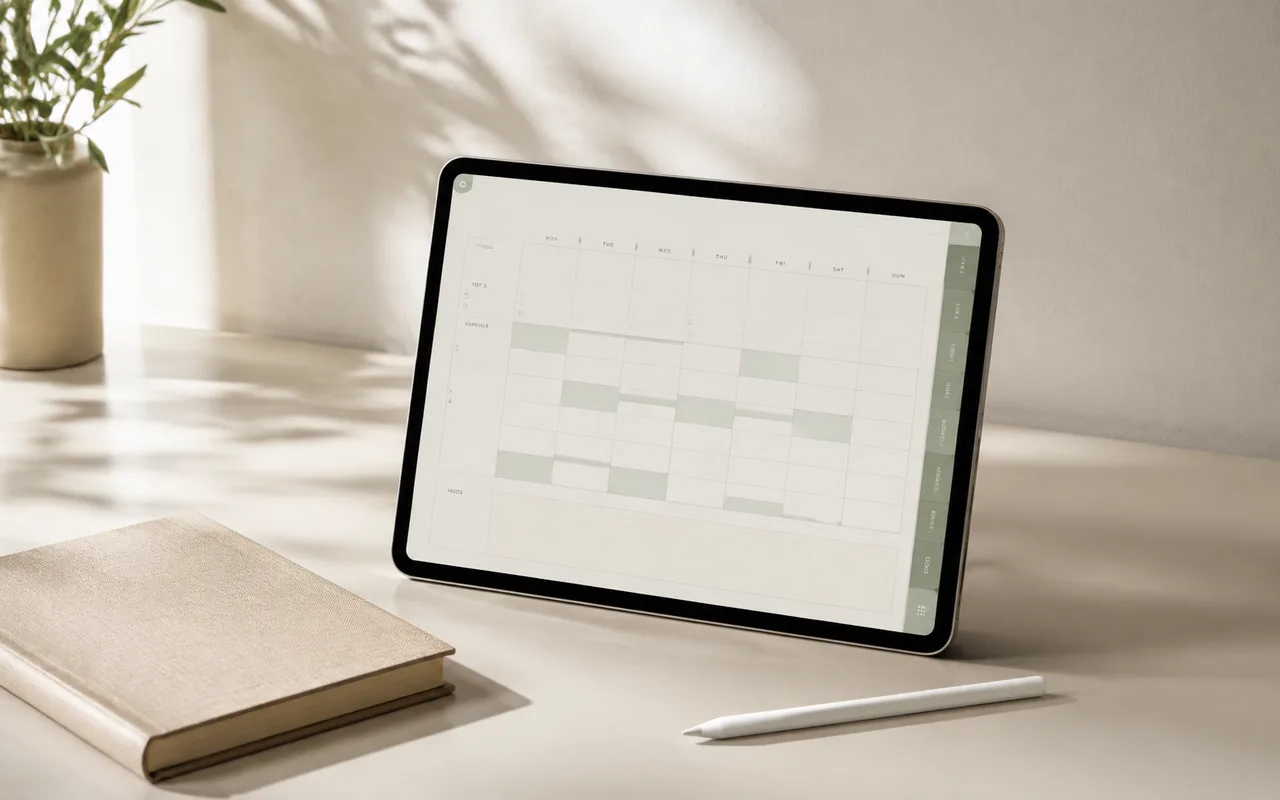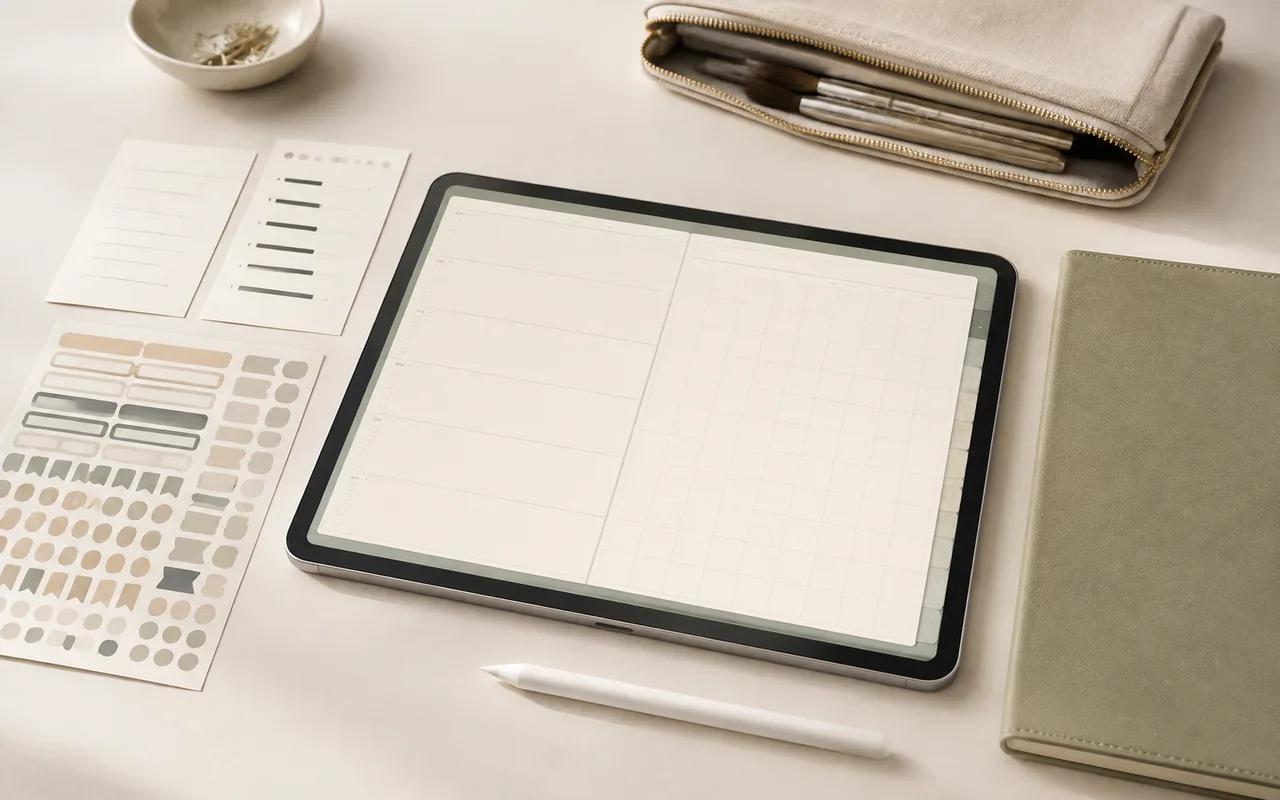
Goodnotes can treat a linked PDF as both a notebook and a navigation system. The important part is knowing when you are editing and when you are following links.
Step 1
Download the file
Save the PDF to Files first. This gives you a clean original that is independent of the copy you will annotate.
Step 2
Create the notebook
In Goodnotes, choose New, then Import, and select the planner PDF. You can also use the system share sheet and choose Open in Goodnotes.
- Select the destination folder.
- Rename the imported notebook.
- Wait for page thumbnails to finish generating before editing.
Step 3
Use internal links
Switch to read-only mode to tap internal tabs. If a link does nothing, check the mode first; a pen or lasso selection can intercept the tap.
Step 4
Protect your work
Enable Goodnotes cloud sync and make occasional manual exports. Sync is convenient, while an exported backup gives you a separate recovery path.
Before you finish
Quick checklist
Next stepApply one change before reading another tutorial.Explore planners