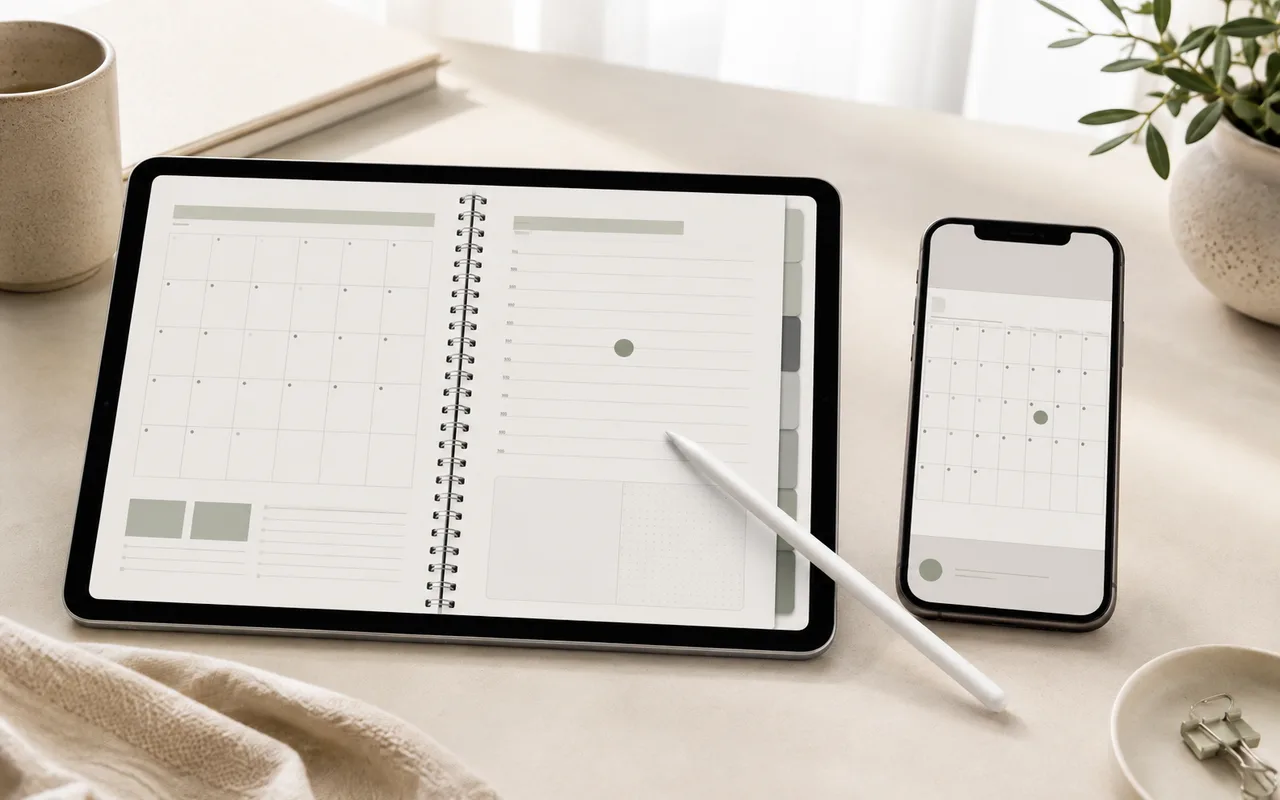
A supported Planner yearly book can open Apple's Calendar app from a dated page. If Calendar uses iCloud, events created on an iPad also appear on an iPhone, so reminders remain available even when the tablet is elsewhere.
Step 1
Check compatibility first
The Apple Calendar connection requires the Planner Shortcut. It currently works only with supported one-day-per-page and two-days-per-page yearly layouts where each page displays the date as a large number.
Step 2
Open the matching Calendar date
- Install the Planner Shortcut and complete its initial setup.
- Plan the day as usual on a supported one-day or two-day page in your yearly planner.
- Switch the note-taking app to read-only mode, tap the large date number, and choose Open Link.
- Wait for the shortcut to identify the date and open the matching day in Apple Calendar.
- Move the schedule from the planner into Calendar, then add reminders or use any other Apple Calendar features you need.
Before you finish
Quick checklist
Next stepApply one change before reading another tutorial.Explore planners